Follow our complete step-by-step installation guide to get Jenny Mod up and running on Minecraft Java Edition and Bedrock Edition. No technical experience required.
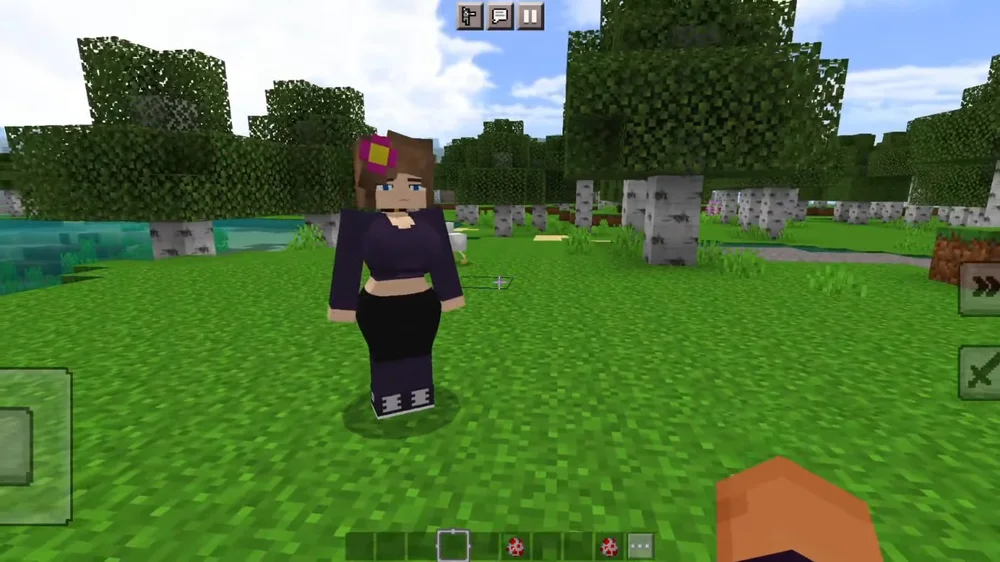
Jenny Mod is one of the most popular Minecraft companion mods available, introducing an interactive NPC character with custom dialogue, unique animations, and engaging gameplay mechanics. Whether you are a seasoned modder or someone installing their very first Minecraft modification, this guide walks you through every step of the process in plain, easy-to-follow language.
The installation process differs depending on whether you play Minecraft Java Edition on PC, Mac, or Linux, or Minecraft Bedrock Edition on mobile devices and Windows. Java Edition uses Minecraft Forge as its mod loader and requires a .jar file, while Bedrock Edition uses the built-in addon system with a .mcpack file. Both methods take only a few minutes when you follow the correct steps.
Before you begin, make sure you have a legitimate copy of Minecraft installed and that you have launched the game at least once. This ensures the necessary game directories and files exist on your system. Once you have confirmed that, choose your edition below and follow the detailed instructions to install Jenny Mod and start exploring everything it has to offer.
Install Jenny Mod on Minecraft Java Edition using Minecraft Forge. This method works on Windows, macOS, and Linux computers. Follow each step carefully and in the exact order presented below for a smooth installation experience.
Minecraft Forge is the mod loading framework that allows Minecraft to recognize and run mod files like Jenny Mod. Visit the official Minecraft Forge website and navigate to the 1.12.2 downloads section. Download the "Installer" version for your operating system. Run the Forge installer, make sure "Install Client" is selected, verify the Minecraft directory path is correct, and click OK. Wait for the installation to finish and look for the success confirmation message. If the installer does not open, right-click the file and choose "Open with Java." On macOS, you may need to allow the app in System Preferences under Security and Privacy. You must have launched vanilla Minecraft 1.12.2 at least once before installing Forge, as Forge requires existing game files to install correctly.
Download the official Jenny Mod .jar file for Minecraft 1.12.2. The file you need is Jenny-Mod-Forge-1.12.2-v1.9.0.jar, which you can get directly from the button below. Save the file to a location you can easily find, such as your desktop or downloads folder. The file should be approximately 15 to 25 MB in size. Do not extract, unzip, or rename the .jar file after downloading it. The file must remain as a single .jar archive for Forge to load it properly. Always verify the file extension is .jar and not .jar.exe or any other modified format.
The mods folder is where Minecraft Forge looks for mod files to load at startup. You need to find or create this folder inside your .minecraft directory. The location varies depending on your operating system. On Windows, press Win+R, type %appdata%\.minecraft\mods and press Enter. On macOS, open Finder, press Cmd+Shift+G, and type ~/Library/Application Support/minecraft/mods. On Linux, navigate to ~/.minecraft/mods using your file manager or terminal. If the mods folder does not exist inside your .minecraft directory, create a new folder and name it mods in all lowercase letters. Forge will automatically detect this folder the next time you launch the game with the Forge profile selected.
Copy or move the downloaded Jenny-Mod-Forge-1.12.2-v1.9.0.jar file from your downloads location into the mods folder you found or created in the previous step. You can do this by simply dragging and dropping the file or by using copy and paste. Make sure the .jar file is placed directly inside the mods folder and not inside any subfolder. Do not extract or unzip the file under any circumstances. If you have other Forge mods for Minecraft 1.12.2, they can coexist in the same mods folder alongside Jenny Mod. However, if you experience any issues later, try removing other mods temporarily to isolate potential conflicts between modifications.
Open the Minecraft Launcher application on your computer. In the bottom-left corner of the launcher window, you will find a dropdown menu for selecting your game profile. Click on it and select the profile labeled "Forge" or "forge-1.12.2" from the list of available profiles. If you do not see a Forge profile in the dropdown, it means Forge was not installed correctly and you should go back to step one and repeat the Forge installation process. Once the Forge profile is selected, click the large green Play button to launch Minecraft. The first launch after installing mods may take noticeably longer than usual because Forge needs to initialize and load all mod files. You will see a Forge loading screen with a progress bar. Wait patiently for this process to complete before interacting with the game.
Once Minecraft has fully loaded and you reach the main menu screen, click the "Mods" button to open the mod list. Scroll through the list of loaded mods and look for Jenny Mod with its version number displayed. If Jenny Mod appears in this list, congratulations, the installation was completely successful. To test the mod in action, create a new singleplayer world in either Creative or Survival mode. Once inside the world, you can interact with Jenny and the other characters that the mod introduces. Explore your world to discover all the unique interactions, dialogue options, and gameplay features that make Jenny Mod one of the most popular Minecraft companion mods available. If the mod does not appear in the list, double-check that the .jar file is in the correct mods folder and that you are running the Forge profile.
Install Jenny Mod on Minecraft Bedrock Edition using the built-in addon system. This method works on Windows 10/11, Android, and iOS devices. Bedrock uses .mcpack files instead of .jar files, making the import process straightforward on all supported platforms.
Download the official Jenny Mod .mcpack file for Minecraft Bedrock Edition using the button below. The .mcpack file contains both the resource pack and behavior pack needed for the mod to function correctly. Save the file to a location you can easily access on your device. On Android, the file will typically save to your default Downloads folder. On iOS, the file will appear in the Files app or your browser's download manager. On Windows, save it to your desktop or Downloads folder. The total file size is usually between 10 and 20 MB. If the file appears significantly larger or smaller, verify you are downloading from the correct source.
Locate the downloaded .mcpack file on your device and tap or double-click it. Your operating system should automatically recognize the file type and offer to open it with Minecraft Bedrock Edition. Tap "Open with Minecraft" when prompted. Minecraft will launch and begin importing the addon, displaying a progress notification. Wait for the confirmation message that says the import was successful before proceeding. On Android, if the file does not open automatically with Minecraft, open your file manager app, navigate to your Downloads folder, and tap the .mcpack file. If you see multiple app options, select Minecraft. On iOS, open the Files app, locate the downloaded file, tap it, and choose "Open in Minecraft" from the share options. On Windows, simply double-click the .mcpack file and it should import directly into Minecraft Bedrock Edition.
After the import completes, go to the Minecraft main menu and tap "Play" followed by "Create New" to set up a new world, or tap the pencil icon next to an existing world to edit its settings. Scroll down to find the "Resource Packs" and "Behavior Packs" sections in the world configuration screen. Tap on each section and look for the Jenny Mod packs listed under the "Available" tab. Tap the Jenny Mod resource pack and press "Activate," then do the same for the Jenny Mod behavior pack. Both packs must be activated for the mod to function correctly. You should see them move from the Available tab to the Active tab after activation. If the mod requires experimental gameplay features, you may also need to enable them under the Experiments toggle in the world settings.
Before creating or entering your world, configure the following settings for the best Jenny Mod experience on Bedrock Edition. Set your preferred game mode to either Creative or Survival depending on how you want to play. Enable "Activate Cheats" if you want access to commands for summoning or managing mod entities. Set the difficulty level to Normal or higher for the complete gameplay experience. If you see any dependency warnings when activating the behavior pack, make sure the corresponding resource pack is also enabled. Both packs work together and the mod will not function properly if only one is activated.
Tap "Create" to generate your new world with Jenny Mod active, or enter your existing world if you added the packs to an already created world. The world loading process may take slightly longer than usual as Minecraft initializes the addon data and assets. Once the world finishes loading, you should be able to interact with the mod's features immediately. Jenny and other characters added by the mod will spawn naturally in your world or can be summoned using the mod's designated spawn methods. Explore your Minecraft world to discover all the unique NPC interactions, dialogue options, custom animations, and gameplay features that Jenny Mod brings to Bedrock Edition. If characters do not appear right away, try walking around to generate new chunks where they can spawn.
Get the most out of your Jenny Mod experience with these helpful tips and best practices from the Minecraft modding community. Following these recommendations will help you avoid common pitfalls and enjoy a smooth, uninterrupted gameplay session.
-Xmx2G to -Xmx4G or higher for better performance.Running into problems while installing Jenny Mod? Below are solutions to the most frequently reported issues that players encounter during the Jenny Mod download and installation process.
This is usually caused by a version mismatch between Jenny Mod, Minecraft Forge, and Minecraft itself. Jenny Mod for Java Edition requires Minecraft 1.12.2 and Forge 1.12.2 specifically. Using any other Minecraft version will cause a crash during initialization. Start by verifying that all three components are the correct matching version. Next, remove all other mods from the mods folder temporarily and test with only Jenny Mod installed. If the game launches successfully with just Jenny Mod, add your other mods back one at a time to identify which one is causing the conflict. Also check your Minecraft Launcher settings and make sure you have allocated at least 4 GB of RAM by modifying the JVM arguments to include -Xmx4G. Crashes that mention "OutOfMemoryError" in the crash report indicate you need more RAM allocated.
If you launch Minecraft with Forge but Jenny Mod is not visible in the Mods menu, the most common cause is that the .jar file is not in the correct location. Verify the .jar file is placed directly inside the mods folder and not within a subfolder. Windows sometimes hides file extensions by default, so what appears to be "jenny-mod.jar" might actually be "jenny-mod.jar.zip" or "jenny-mod.jar.txt." Enable file extension visibility in your file explorer settings to check the actual extension. Also confirm you are launching Minecraft with the Forge profile selected in the launcher dropdown, not the standard vanilla Minecraft profile. If everything looks correct, try re-downloading the mod file as the original download may have been incomplete or corrupted during transfer.
Missing textures usually appear as pink and black checkerboard patterns on character models, or the characters may be completely invisible with only floating items visible. This typically indicates a corrupted or incomplete download of the mod file. Re-download the Jenny Mod .jar file and replace the existing one in your mods folder. If you are using OptiFine alongside Jenny Mod, try disabling the "Fast Render" option in Video Settings under Performance, as this setting can interfere with custom mod textures and models. You can also press F3+T while in-game to force Minecraft to reload all textures and resource packs. Additionally, make sure your graphics card drivers are up to date, as outdated GPU drivers can cause texture rendering issues with modded content.
Performance drops after installing Jenny Mod are often caused by insufficient system resources allocated to Minecraft. Open the Minecraft Launcher, go to Installations, edit your Forge profile, click More Options, and increase the RAM allocation by changing -Xmx2G to -Xmx4G or -Xmx6G in the JVM arguments field. Install OptiFine alongside Jenny Mod for significant performance improvements through better rendering optimization. In-game, reduce your render distance to 8 to 12 chunks, set graphics quality to Fast instead of Fancy, and turn off smooth lighting and particles if you are on lower-end hardware. Close any background applications like web browsers, music streaming apps, and chat programs that consume system memory while you play.
If the .mcpack file does not automatically open with Minecraft Bedrock Edition, first make sure that Minecraft is installed and updated to the latest version on your device. On Android, open your file manager app, navigate to the Downloads folder, and manually tap the .mcpack file, then select Minecraft from the list of available apps. If your browser changed the file extension during download, rename it back to .mcpack. On iOS, open the Files app, locate the downloaded file, and use the Share button to select "Open in Minecraft." If the import process starts but fails midway, try restarting your device and attempting the import again. As a last resort, you can try renaming the .mcpack file extension to .zip, extracting the contents, and manually placing the resource and behavior pack folders into the appropriate Minecraft directories on your device.
Now that you know exactly how to install Jenny Mod on both Java and Bedrock Edition, grab the latest version and start your adventure with unique NPC companions and interactive gameplay features.
Download Jenny Mod